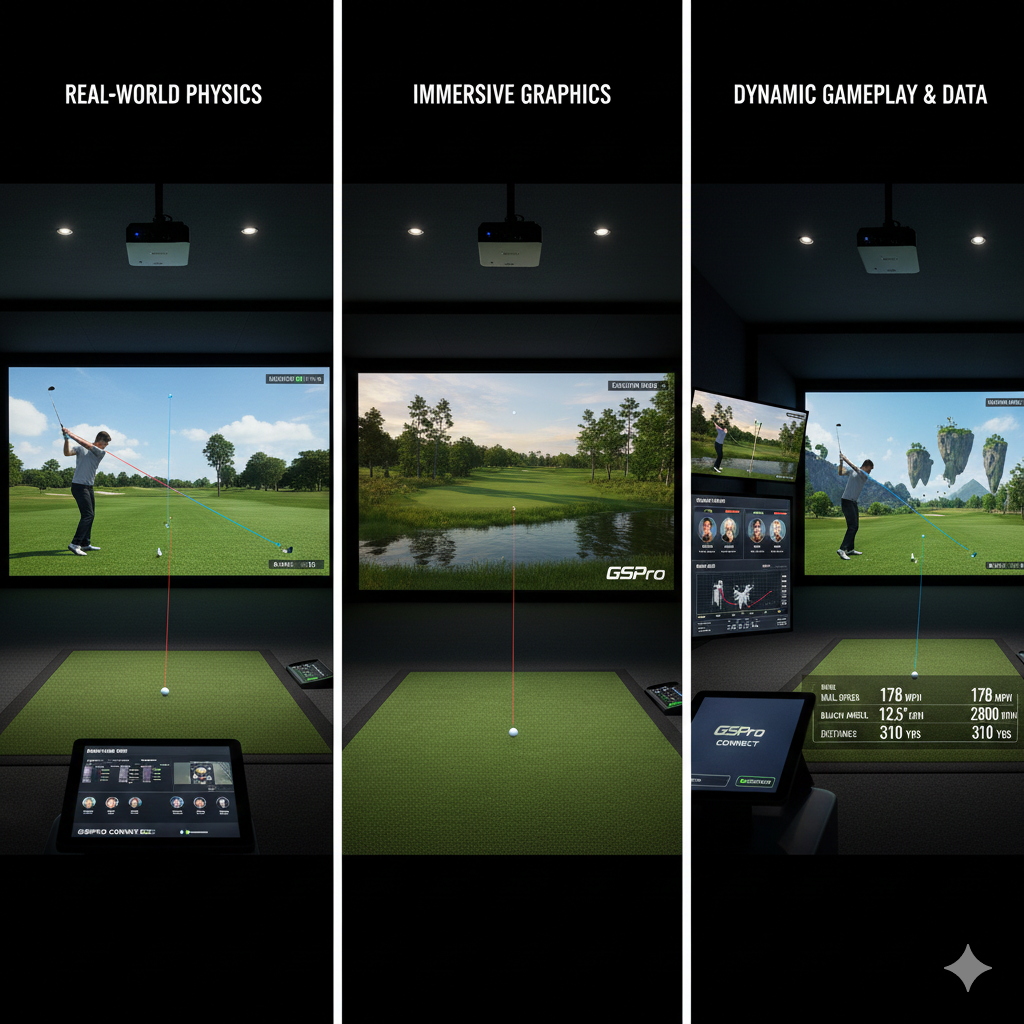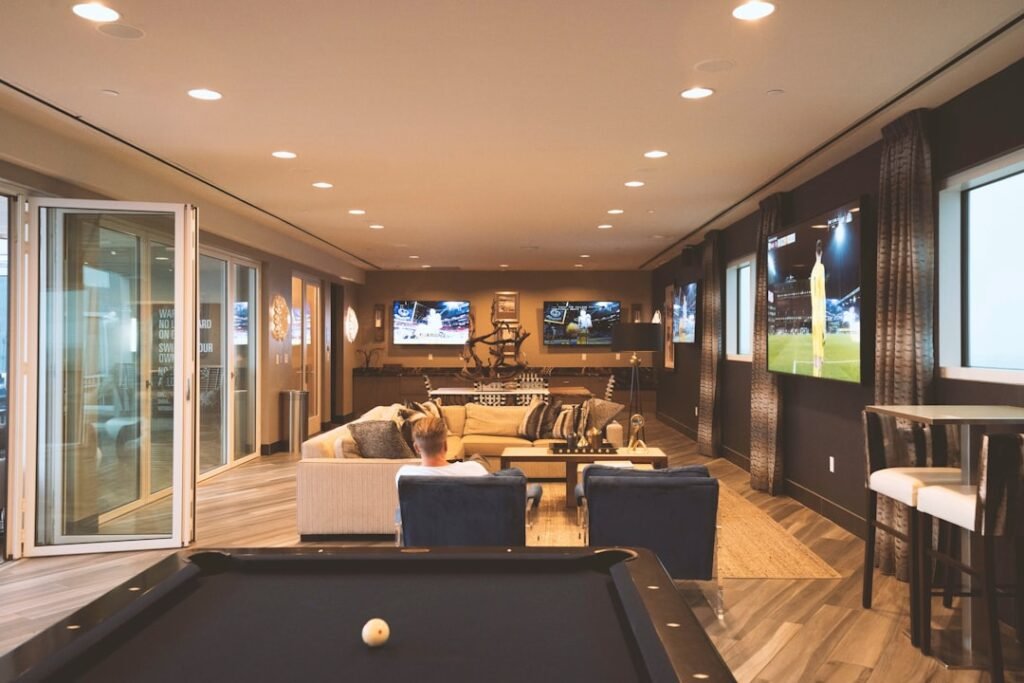

Golf simulators, like all technological systems, present specific operational challenges that users must understand to maintain optimal performance. Common issues include inaccurate shot tracking, software malfunctions, calibration errors, and hardware connectivity problems. These technical difficulties can significantly impact measurement accuracy and overall system functionality.
Effective troubleshooting serves multiple purposes beyond basic problem resolution. It ensures measurement precision, maintains consistent performance standards, and protects the financial investment in simulator equipment. When technical issues occur, systematic diagnostic approaches can restore proper functionality and prevent recurring problems.
Understanding common failure points and their solutions enables users to minimize downtime and maintain reliable system operation. Proper maintenance and troubleshooting knowledge directly correlate with simulator longevity and performance consistency. Users who develop technical proficiency in addressing common issues experience fewer interruptions and achieve more accurate data collection during practice sessions.
Key Takeaways
- Proper setup and calibration of hardware and sensors are crucial for accurate golf simulator performance.
- Regular troubleshooting of tracking, calibration, and sensor placement helps maintain shot accuracy.
- Software updates and stable internet connections prevent crashes and connectivity issues.
- Adjusting projector and audio settings resolves common display and sound problems.
- Checking power sources, cables, and optimizing system settings reduces lag and hardware malfunctions.
Setting Up Your Golf Simulator Correctly
The first step in ensuring a seamless golfing experience is to set up our golf simulator correctly. This involves checking both the hardware and software components for proper installation. We must ensure that all cables are securely connected, sensors are positioned correctly, and the software is installed without any errors.
A thorough setup process lays the foundation for accurate performance and minimizes the likelihood of encountering issues later on. Once we have confirmed that everything is installed correctly, calibrating the sensors and cameras becomes our next priority. This step is vital for accurate shot tracking, as even minor misalignments can lead to significant discrepancies in data.
By taking the time to calibrate these components properly, we can ensure that our swings are accurately represented on-screen, allowing us to focus on improving our game rather than troubleshooting errors.
Dealing with Tracking and Sensor Issues
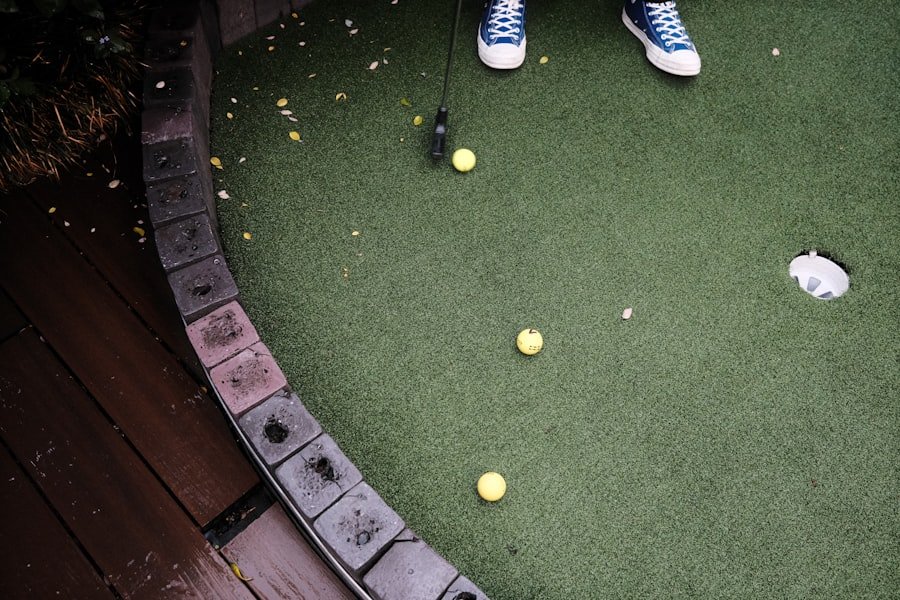
Tracking and sensor issues are among the most common problems we may face while using a golf simulator. When we notice discrepancies in shot accuracy or ball flight tracking, it can be disheartening. To troubleshoot these issues effectively, we should first examine the sensor positions and ensure they are correctly aligned with our hitting area.
Sometimes, even a slight adjustment can make a world of difference in performance. Additionally, we must check for any obstructions in the playing area that could interfere with the sensors’ ability to track our shots accurately. Items such as furniture, equipment, or even lighting can impact performance.
By creating a clear and unobstructed space for our simulator, we can significantly improve tracking accuracy and enhance our overall experience.
Addressing Calibration Problems
Calibration problems can be particularly frustrating when they affect our club and ball data. If we find that our swing metrics or shot data seem off, it may be time to revisit our calibration settings. Fixing these issues often involves adjusting settings within the software or re-calibrating the system altogether.
Taking a systematic approach to calibration can help us identify where things may have gone wrong. Re-calibrating the system as needed is essential for maintaining accuracy over time. As we use our simulator more frequently, environmental factors or changes in equipment can affect calibration.
Regularly checking and adjusting these settings ensures that we continue to receive reliable data that reflects our true performance on the course.
Resolving Software and Connectivity Problems
| Issue | Common Cause | Symptoms | Fix / Solution | Estimated Time to Fix |
|---|---|---|---|---|
| Ball Tracking Inaccuracy | Improper lighting or sensor misalignment | Shots not registering correctly or inconsistent data | Adjust lighting to reduce glare, realign sensors, recalibrate system | 15-30 minutes |
| Simulator Not Powering On | Power supply issues or loose connections | No response when turning on the system | Check power cables, ensure outlet is working, reset power strip | 5-10 minutes |
| Software Freezing or Crashing | Outdated software or insufficient system resources | Simulator software stops responding or closes unexpectedly | Update software, close background applications, restart computer | 10-20 minutes |
| Inaccurate Club Data | Incorrect club calibration or sensor interference | Club speed or angle data seems off | Recalibrate clubs, remove nearby electronic interference | 20-30 minutes |
| Screen Projection Issues | Projector misalignment or dirty lens | Blurred or distorted image on screen | Adjust projector position, clean lens, check resolution settings | 10-15 minutes |
| Connectivity Problems | Wi-Fi or Bluetooth interference | Devices fail to connect or drop connection frequently | Restart router, move devices closer, update drivers | 10-20 minutes |
In today’s digital age, software and connectivity problems can be a significant source of frustration for golf simulator users. Issues such as software crashes or connectivity problems can interrupt our gameplay and lead to lost progress. To troubleshoot these issues effectively, we should first check our internet connection to ensure it is stable and functioning properly.
Updating software is another critical step in resolving these problems. Manufacturers often release updates to improve performance and fix bugs, so keeping our software up-to-date is essential for optimal performance. By taking these proactive measures, we can minimize disruptions and enjoy a smoother gaming experience.
Handling Display and Projection Issues
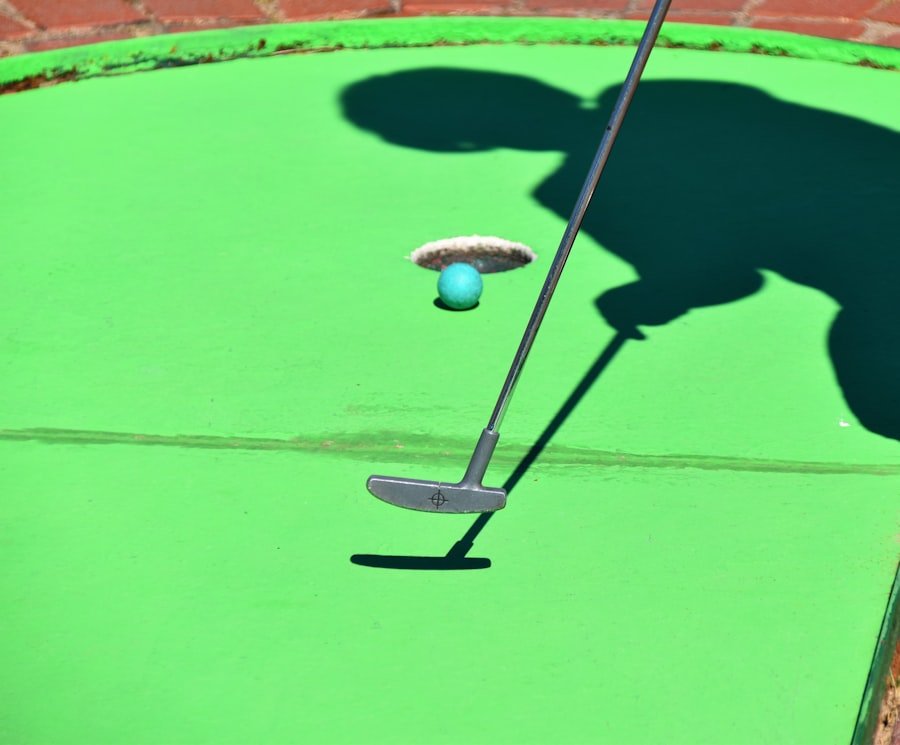
Display quality and projection alignment are crucial elements of an immersive golf simulator experience. When we encounter problems with display quality, it can detract from our enjoyment of the game. Troubleshooting these issues often involves adjusting projector settings to ensure that images are clear and vibrant.
Proper screen positioning is equally important; if the screen is misaligned or too far from the projector, it can lead to distorted images or poor visibility. By taking the time to adjust both projector settings and screen positioning, we can create an optimal viewing experience that enhances our gameplay and allows us to fully immerse ourselves in the virtual golfing world.
Troubleshooting Audio and Sound Problems
Audio quality plays a significant role in creating an engaging gaming atmosphere. If we experience sound quality issues or audio feedback during gameplay, it can be distracting and diminish our overall experience. Addressing these problems often begins with checking speaker connections to ensure everything is plugged in correctly.
Adjusting volume settings is another simple yet effective way to enhance audio quality. Sometimes, sound issues arise from settings that are too high or too low, leading to distortion or inaudibility. By fine-tuning these settings, we can create an immersive audio environment that complements our gameplay and enhances our enjoyment of the simulator.
Dealing with Power and Hardware Malfunctions
Power and hardware malfunctions can be particularly concerning when they disrupt our gameplay. Troubleshooting these issues often starts with checking cables, connections, and power sources for potential problems. Loose connections or damaged cables can lead to unexpected shutdowns or performance issues.
If we encounter persistent hardware malfunctions, it may be necessary to consult the manufacturer’s guidelines or seek professional assistance. Understanding how to identify and address these issues ensures that we can maintain our simulator’s functionality and enjoy uninterrupted gameplay.
Fixing Simulator Lag and Delay
Lag and delay in shot tracking and gameplay can be incredibly frustrating for any golfer using a simulator. These issues often stem from system performance problems or excessive background processes running on our devices. To address lag effectively, we should optimize system settings by closing unnecessary applications and ensuring that our hardware meets the simulator’s requirements.
Reducing background processes not only improves performance but also enhances our overall gaming experience. By taking these steps, we can minimize lag and delay, allowing us to focus on perfecting our swings rather than dealing with technical difficulties.
Troubleshooting Virtual Course and Game Selection
Selecting virtual courses and game options should be a seamless process; however, issues can arise that hinder our ability to enjoy different golfing experiences. If we encounter problems related to course selection or game options, it may be necessary to update our software or check for compatibility with virtual courses. Staying informed about available updates ensures that we have access to the latest features and improvements.
By addressing these issues proactively, we can expand our golfing horizons and enjoy a diverse range of virtual courses that keep our gameplay fresh and exciting.
Conclusion and Additional Troubleshooting Resources
In conclusion, troubleshooting common golf simulator issues is an essential skill for any user looking to maximize their experience on the virtual course. From addressing tracking inaccuracies to resolving software glitches, understanding how to tackle these challenges allows us to enjoy accurate gameplay while honing our skills. For those seeking additional resources and support for troubleshooting golf simulator problems, many manufacturers offer online guides, forums, and customer service options that can provide valuable assistance.
By leveraging these resources, we can enhance our knowledge and ensure that our time spent on the simulator remains enjoyable and productive. With a little patience and persistence, we can overcome any obstacles that come our way in this exciting digital golfing journey.
If you’re experiencing issues with your golf simulator, you might find it helpful to explore related topics that can enhance your overall golfing experience. For instance, understanding the differences between a simulator and a launch monitor can significantly impact your investment decisions and game improvement strategies. Check out this insightful article on the topic: Simulator vs. Launch Monitor: Which is the Better Investment for Game Improvement?. This resource can provide you with valuable information that complements your troubleshooting efforts.
FAQs
What are common issues faced with golf simulators?
Common issues include inaccurate ball tracking, sensor calibration problems, software glitches, lighting interference, and hardware malfunctions such as projector or screen issues.
How can I improve the accuracy of my golf simulator?
Ensure proper calibration of sensors, maintain consistent lighting conditions, regularly update the simulator software, and verify that the hitting mat and ball are compatible with the system.
Why is my golf simulator not detecting the ball correctly?
This can be caused by poor lighting, incorrect ball placement, dirty or misaligned sensors, or using a ball that is not compatible with the simulator.
How do I fix calibration problems in a golf simulator?
Follow the manufacturer’s calibration instructions carefully, perform calibration in a well-lit environment, and ensure all sensors and cameras are clean and properly positioned.
What should I do if the simulator software crashes or freezes?
Restart the software and your computer, check for software updates, ensure your system meets the minimum hardware requirements, and contact customer support if the problem persists.
Can lighting affect the performance of a golf simulator?
Yes, excessive or uneven lighting can interfere with sensors and cameras, causing tracking errors. It is best to use consistent, indirect lighting in the simulator area.
How often should I maintain my golf simulator?
Regular maintenance includes cleaning sensors and cameras, checking for software updates, inspecting hardware connections, and recalibrating the system as needed, typically every few weeks or after heavy use.
What should I do if the projector image is blurry or misaligned?
Adjust the projector focus and position, clean the projector lens, check the screen for wrinkles or damage, and ensure the projector is compatible with the simulator setup.
Is it necessary to use specific golf balls with simulators?
Many simulators require specific types of balls for accurate tracking. Using the recommended balls helps ensure proper sensor detection and accurate shot data.
Where can I find support for troubleshooting my golf simulator?
Support can usually be found through the manufacturer’s website, user manuals, online forums, and customer service departments. Many brands also offer video tutorials and FAQs for common issues.