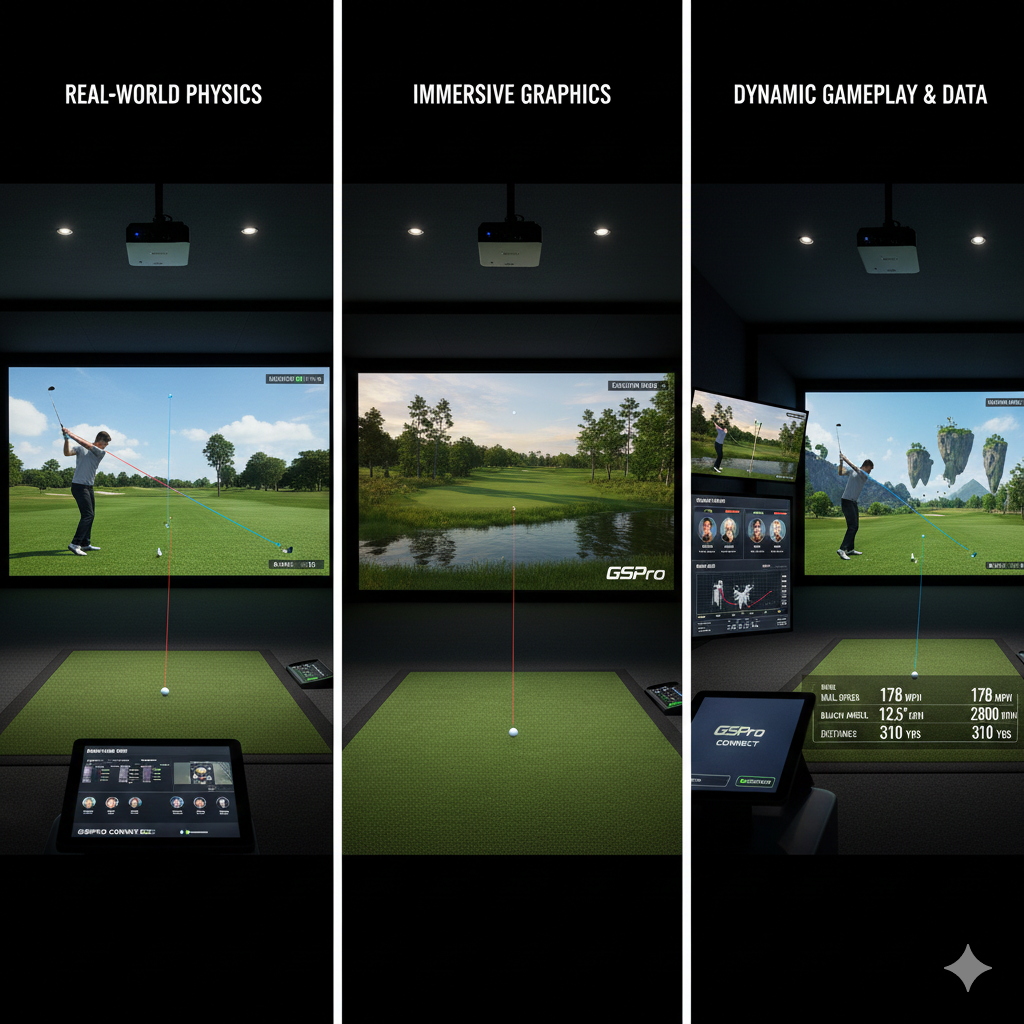

Golf simulators have transformed the way golfers practice and play by providing a virtual experience that overcomes weather limitations and time constraints. Despite their technological advancements, these systems can experience various operational issues that affect performance and user satisfaction. Effective troubleshooting knowledge is crucial for maintaining optimal functionality.
When problems arise with golf simulators, a systematic approach to diagnosis and resolution is necessary. Common issues include sensor malfunctions, calibration errors, software bugs, and environmental interference. Each category of problems requires specific troubleshooting methods and solutions.
This article examines the typical challenges encountered with golf simulator systems and provides practical troubleshooting techniques. By understanding these common issues and their solutions, users can minimize downtime and maximize the benefits of their simulator investment, ensuring consistent and reliable performance during practice sessions and virtual rounds.
Key Takeaways
- Calibration and sensor issues are common and can often be resolved with proper adjustments and maintenance.
- Screen, projection, and audio problems require checking hardware connections and settings for optimal performance.
- Software glitches and connectivity issues may need updates, resets, or network troubleshooting.
- Accurate tracking of club and ball data is crucial and can be improved by addressing environmental and equipment factors.
- Power, electrical, and space constraints should be managed to ensure consistent and reliable simulator operation.
Common Calibration Issues and Solutions
Calibration is a critical aspect of any golf simulator, as it directly affects the accuracy of our shots and overall experience. One of the most common calibration issues we may encounter is misalignment between the simulator’s sensors and our hitting area. This misalignment can lead to inaccurate readings, resulting in frustrating gameplay.
To resolve this, we should first ensure that the simulator is set up according to the manufacturer’s specifications. This includes checking the distance from the screen, the height of the sensors, and the positioning of our hitting mat. If we find that our simulator is still not calibrated correctly after following the setup guidelines, recalibrating the system may be necessary.
Most simulators come with a calibration mode that guides us through the process step-by-step. By following these instructions carefully, we can adjust the settings to better reflect our swing dynamics and improve accuracy. Regularly recalibrating our simulator, especially after moving it or making adjustments to our setup, can help maintain optimal performance.
Dealing with Sensor Malfunctions
Sensor malfunctions are another common issue that can disrupt our golfing experience. These sensors are responsible for capturing data about our swings and ball flight, so when they fail, it can lead to inaccurate readings or complete system failures. One of the first steps we should take when experiencing sensor issues is to inspect them for any visible damage or obstructions.
Dust, dirt, or even misalignment can interfere with their functionality. If we determine that the sensors are clean and properly aligned but still malfunctioning, it may be time to reset the system. Many simulators have a reset function that can help recalibrate the sensors and restore their functionality.
If problems persist after a reset, consulting the user manual or reaching out to customer support may be necessary. They can provide specific troubleshooting steps tailored to our model, ensuring we get back on track as quickly as possible.
Addressing Screen and Projection Problems
The screen and projection system are vital components of our golf simulator setup, as they provide the visual feedback we rely on during gameplay. Issues with the screen can manifest in various ways, such as flickering images, poor resolution, or complete blackouts. When faced with these problems, our first step should be to check all connections between the projector and the screen.
Loose cables or faulty connections can often be the culprit behind display issues. If we find that all connections are secure but still experience problems, adjusting the projector settings may help. Many projectors come with options for brightness, contrast, and resolution that can be fine-tuned for optimal performance.
Additionally, ensuring that our projector is positioned correctly—at the right distance and angle—can significantly enhance image quality. If all else fails, consulting the manufacturer’s support resources can provide further guidance on resolving persistent screen issues.
Troubleshooting Software and Connectivity Issues
| Issue | Common Cause | Symptoms | Fix/Resolution | Estimated Time to Fix |
|---|---|---|---|---|
| Ball Tracking Inaccuracy | Improper lighting or sensor misalignment | Shots not registering correctly or inconsistent ball flight | Adjust lighting, realign sensors, recalibrate system | 15-30 minutes |
| Simulator Not Powering On | Power supply issues or loose connections | No response when turning on the system | Check power cables, ensure outlet is working, reset power strip | 5-10 minutes |
| Software Freezing or Crashing | Outdated software or insufficient system resources | Simulator freezes during play or crashes unexpectedly | Update software, close background apps, restart computer | 10-20 minutes |
| Inaccurate Club Data | Incorrect club calibration or sensor interference | Distance and club type data inconsistent with actual shots | Recalibrate clubs, remove nearby electronic interference | 20-30 minutes |
| Screen Display Issues | Projector misalignment or screen damage | Blurry or distorted image on impact screen | Adjust projector position, clean or replace screen | 15-30 minutes |
| Sensor Not Detecting Ball | Ball color or size incompatible, sensor obstruction | Shots not registering or delayed response | Use approved balls, clear sensor path, clean sensors | 10-15 minutes |
In today’s digital age, software plays a crucial role in the functionality of our golf simulators. Connectivity issues can arise from various sources, including Wi-Fi problems or software updates that have not been installed correctly. When we encounter connectivity issues, it’s essential first to check our internet connection.
A stable and strong Wi-Fi signal is necessary for many simulators to function correctly, especially those that rely on cloud-based data. If our internet connection is stable but we still face software issues, updating the simulator’s software may be necessary. Manufacturers often release updates to improve performance and fix bugs.
We should regularly check for updates and install them as needed. Additionally, if we experience persistent software glitches, uninstalling and reinstalling the application can sometimes resolve underlying issues. By staying proactive about software maintenance, we can minimize disruptions during our practice sessions.
Understanding and Resolving Tracking Errors
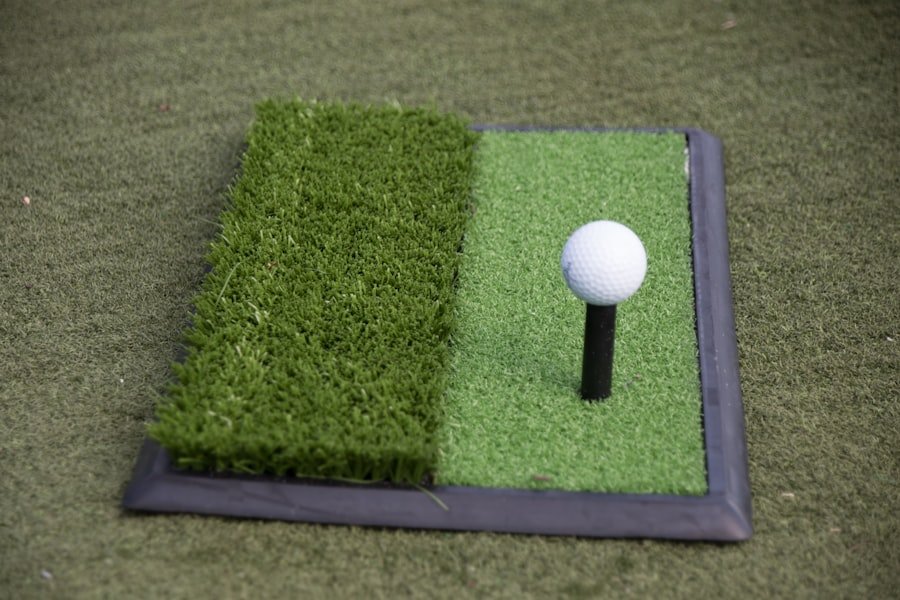
Tracking errors are particularly frustrating as they directly impact our gameplay experience. These errors occur when the simulator fails to accurately track our swings or ball flight paths. One common cause of tracking errors is improper lighting conditions in our practice area.
If there is too much glare or insufficient light, it can confuse the sensors responsible for tracking movement. We should ensure that our hitting area is well-lit but free from direct sunlight or harsh reflections. Another factor contributing to tracking errors could be our swing mechanics or equipment compatibility.
If we are using clubs or balls that are not recognized by the simulator, it may struggle to provide accurate data. We should consult our simulator’s compatibility list to ensure that we are using appropriate equipment. Additionally, practicing consistent swing mechanics can help improve tracking accuracy over time.
Handling Power and Electrical Problems
Power issues can bring our golfing sessions to an abrupt halt, making it crucial for us to understand how to troubleshoot these problems effectively. One of the first steps we should take when experiencing power issues is to check all electrical connections and power sources. Loose cables or faulty power strips can lead to intermittent power loss or complete shutdowns of our simulator.
If we find that all connections are secure but still face power issues, it may be worth testing different outlets or power sources. Sometimes, using a different circuit can resolve underlying electrical problems. Additionally, ensuring that our simulator is plugged into a surge protector can help prevent damage from power surges or outages.
If power issues persist despite these efforts, consulting an electrician may be necessary to address any underlying electrical problems in our home.
Dealing with Sound and Audio Troubles
Sound plays an integral role in creating an immersive golfing experience within a simulator environment. When audio issues arise—such as no sound output or distorted audio—it can detract from our enjoyment of the game. Our first step in troubleshooting sound problems should be checking all audio connections and settings within the simulator’s software.
If connections are secure but sound issues persist, adjusting audio settings may help resolve the problem. Many simulators allow us to customize audio preferences for different aspects of gameplay, such as background music or sound effects related to ball impact. By experimenting with these settings, we may find a configuration that enhances our audio experience.
If all else fails, consulting user forums or customer support can provide additional insights into resolving persistent audio troubles.
Troubleshooting Club and Ball Data Accuracy
Accurate data regarding club performance and ball flight is essential for improving our game through a golf simulator. When we notice discrepancies in this data—such as unrealistic distances or incorrect shot shapes—it’s crucial to investigate potential causes. One common issue could be related to equipment compatibility; using clubs or balls not recognized by the simulator can lead to inaccurate readings.
We should also consider how we are using our equipment during practice sessions. Consistency in swing mechanics and ball placement can significantly impact data accuracy. If we consistently practice with proper technique while using compatible equipment, we are more likely to receive reliable feedback from the simulator.
Regularly reviewing data reports generated by the simulator can also help us identify patterns or inconsistencies that need addressing.
Addressing Space and Environment Concerns
The physical space in which we set up our golf simulator plays a significant role in its overall performance and functionality. Factors such as ceiling height, room dimensions, and surrounding obstacles can impact both gameplay and equipment effectiveness. For instance, if our ceiling is too low, it may restrict our swing motion or lead to equipment damage during practice sessions.
To optimize our space for a golf simulator setup, we should ensure there is ample room for both swinging clubs and moving around comfortably. Additionally, minimizing distractions—such as excessive noise or clutter—can enhance focus during practice sessions. By creating an ideal environment tailored for golfing simulations, we can maximize both enjoyment and performance.
Conclusion and Additional Resources for Golf Simulator Troubleshooting Guide
In conclusion, troubleshooting golf simulators involves understanding a variety of potential issues ranging from calibration errors to environmental concerns. By familiarizing ourselves with common problems and their solutions, we empower ourselves to maintain an enjoyable golfing experience regardless of technological hiccups. Whether it’s recalibrating sensors or addressing software glitches, having a proactive approach will ensure that we spend more time enjoying our virtual rounds rather than dealing with frustrations.
For those seeking additional resources on troubleshooting golf simulators, many manufacturers offer comprehensive user manuals filled with valuable information tailored specifically for their products. Online forums dedicated to golf simulation enthusiasts also provide a wealth of knowledge where users share their experiences and solutions to common problems. By leveraging these resources alongside this guide, we can enhance our understanding of golf simulators and continue improving our game in this innovative digital landscape.
If you’re experiencing issues with your golf simulator, you might find it helpful to explore related topics that can enhance your overall setup. For instance, check out this article on building a home golf studio on any budget, which provides valuable insights into creating an optimal environment for your simulator. This guide can help you ensure that your space is not only functional but also conducive to a great golfing experience.
FAQs
What are common issues faced with golf simulators?
Common issues include inaccurate ball tracking, sensor calibration problems, software glitches, lighting interference, and hardware malfunctions such as projector or screen issues.
How can I improve the accuracy of my golf simulator?
Ensure proper calibration of sensors, maintain consistent lighting conditions, regularly update the software, and position the simulator components according to the manufacturer’s guidelines.
Why is my golf simulator not detecting the ball correctly?
This can be due to poor lighting, dirty or misaligned sensors, incorrect ball placement, or using non-standard golf balls. Cleaning sensors and adjusting lighting often helps.
What should I do if the simulator software crashes or freezes?
Restart the software and your computer, check for software updates, ensure your system meets the minimum requirements, and close unnecessary background applications.
How do I fix projector or display issues in a golf simulator?
Check all cable connections, adjust projector focus and alignment, clean the projector lens, and verify that the projector settings match the simulator’s recommended resolution.
Can lighting affect the performance of a golf simulator?
Yes, excessive or uneven lighting can interfere with sensor accuracy. Using controlled, consistent lighting and avoiding direct sunlight on sensors improves performance.
How often should I calibrate my golf simulator?
Calibration frequency depends on usage but generally should be done regularly, especially after moving equipment or noticing tracking inaccuracies.
What maintenance is required for golf simulator hardware?
Regularly clean sensors and cameras, check for loose connections, update firmware, and inspect the hitting mat and screen for wear and tear.
Is it necessary to use specific golf balls with simulators?
Some simulators require specific types of balls for accurate tracking. Using the recommended balls ensures better performance and reduces detection errors.
Where can I find support if I cannot fix my golf simulator issues?
Contact the manufacturer’s customer support, consult the user manual, visit online forums, or seek professional technician assistance for complex problems.